How To Set an Out of Office Message (Autoresponder)
How To Set an Out of Office Message (Autoresponder)
With an autoresponder (out-of-office message), you automatically inform email senders that you are temporarily unavailable. You can specify when the message becomes active and when it ends. This allows you, for example, to let people know when you will be available again.
Set up auto-reply (out of office)
- Log in to your account using the desktop version.
- Open Settings > E-Mail | Autoresponder.
- Enter a meaningful subject and your message.
- Optional: Set a start date. Without a start date, the autoresponder starts after you save the settings.
- Set an end date. This field is required when activating the autoresponder.
- Tick Enable autoresponder and select OK.
Important: The subject and end date must be filled in when you activate the autoresponder. The end date includes the selected day. No more vacation notices will be sent from the following day onward. The dates are evaluated according to the time zone used in your account.
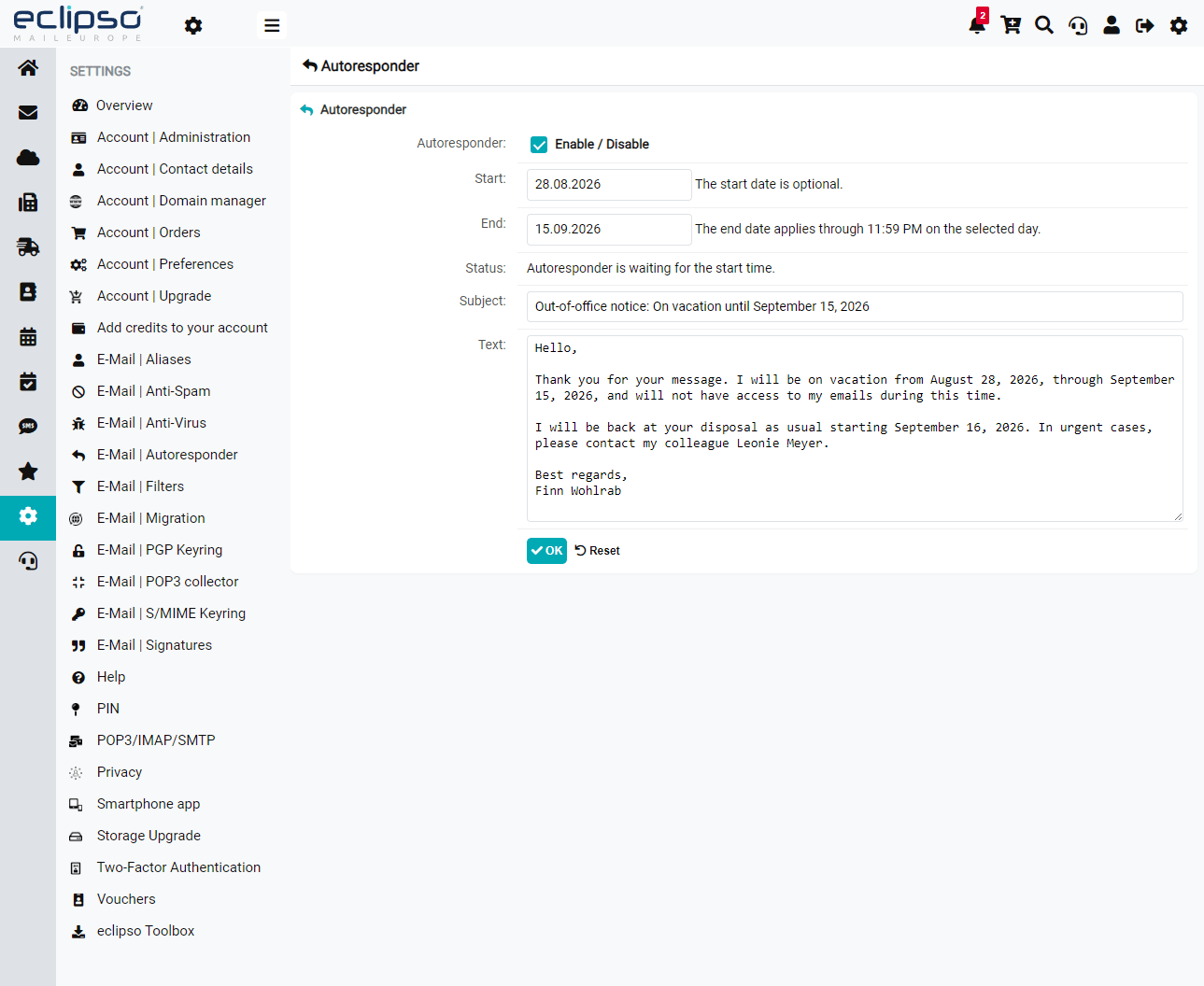
Autoresponder status
The settings show whether the autoresponder is inactive, currently active, scheduled to start later, or expired. Once the end date is reached, a scheduled autoresponder is automatically deactivated.
To protect against mail loops and unwanted message traffic, automatic replies are not sent in every case, for example not in response to certain automated messages or emails marked as junk.
Disable the autoresponder
- Open Settings > E-Mail > Autoresponder.
- Untick Enable autoresponder.
- Select OK.
You can disable the autoresponder at any time. The start and end dates do not need to be filled in for this.
 Keep your message as brief as possible and, if appropriate, include the period of your absence and an alternative contact person.